Showing posts with label registry. Show all posts

Sunday, June 10, 2018

UsrClass.dat stores more history than you think

This is a quick post about two new plugins I wrote for RegRipper that will pull the following artifacts from a Windows 10 UsrClass.dat hive:

  • Microsoft Edge web history (plugin msedge_win10.pl)
  • Microsoft Photos recent file history (plugin photos_win10.pl)

The plugins will parse the following keys:

Microsoft Edge
  • Local Settings \ Software \ Microsoft \ Windows \ CurrentVersion \ AppContainer \ Storage \ microsoft.microsoftedge_8wekyb3d8bbwe \ MicrosoftEdge \ TypedURLs
  • Local Settings \ Software \ Microsoft \ Windows \ CurrentVersion \ AppContainer \ Storage \ microsoft.microsoftedge_8wekyb3d8bbwe \ MicrosoftEdge \ TypedURLsTime
  • Local Settings \ Software \ Microsoft \ Windows \ CurrentVersion \ AppContainer \ Storage \ microsoft.microsoftedge_8wekyb3d8bbwe \ MicrosoftEdge \ TypedURLsVisitCount

Microsoft Photos
  • Local Settings \ Software \ Microsoft \ Windows \ CurrentVersion \ AppModel \ SystemAppData \ Microsoft.Windows.Photos_8wekyb3d8bbwe

Here are some output examples:

msedge_win10 v.20180610
(USRCLASS.DAT) Get values from the user's Microsoft Edge Windows App key

|-- \Local Settings\Software\Microsoft\Windows\CurrentVersion\AppContainer\Storage\microsoft.microsoftedge_8wekyb3d8bbwe
|----- \MicrosoftEdge\TypedURLs
|----- \MicrosoftEdge\TypedURLsTime
|----- \MicrosoftEdge\TypedURLsVisitCount

url1 (TypedURLs)           -> https://www.google.it/
url1 (TypedURLsTime)       -> Tue Jan  2 17:19:53 2018 (UTC)
url1 (TypedURLsVisitCount) -> 4

photos_win10 v.20180610
(USRCLASS.DAT) Get values from the user's Microsoft Photos Windows App key

Local Settings\Software\Microsoft\Windows\CurrentVersion\AppModel\SystemAppData\Microsoft.Windows.Photos_8wekyb3d8bbwe\Schemas
  PackageFullName => Microsoft.Windows.Photos_2017.37071.16410.0_x64__8wekyb3d8bbwe

Local Settings\Software\Microsoft\Windows\CurrentVersion\AppModel\SystemAppData\Microsoft.Windows.Photos_8wekyb3d8bbwe\PersistedStorageItemTable\ManagedByApp

 {2091DC0D-FB11-4834-8ECB-E9F628131FA8}
   KeyLastWrite   : Sat Jun  9 14:50:21 2018 (UTC)
   LastUpdatedTime: Sat Jun  9 14:06:02 2018 (UTC)
   Metadata       : StartFileC:\Users\username\Desktop\3rd.jpg

## Microsoft Photos (Windows App): Recent Files ## (Tab-separated values)

StartFileC:\Users\username\Desktop\3rd.jpg       KeyLastWrite: Sat Jun  9 14:50:21 2018 (UTC)

The tests were done with registry hives exported from computers running Windows 10 version 1511 and 1709.

The scripts are available for download here on my GitHub page.

Let me know if you find any other interesting app storing history activity within this registry hive. There's more than just shellbags inside UsrClass.dat!


References

Saturday, April 1, 2017

RegRipper plugin to parse Foxit Reader

Foxit Reader is a popular free PDF Reader. Like any other program it keeps a file history. This is the Recent Files list shown to the user when the program is launched:


Foxit Reader stores the MRUs under the File MRU and Place MRU subkey in the NTUSER.DAT hive. They are named Item1 – Item50 and hold up to 50 of the last PDF file/path opened. Item 1 contains the most recent value while Item 50 is the oldest last. History\LastOpen contains additional details that I'll mention later.


As a test, I opened 50 different files named with numbers: I first opened a file named 01.pdf, then 02.pdf and so on up to 50.pdf.


Under History\LastOpen, Foxit Reader stores for each file some important information like the page number of the last page read, the zoom level used and the view mode. As you can notice from the picture below, the page number counter starts at "0". That means that page number "1" in a PDF file is stored as "0" in the registry.


I wrote a plugin for RegRipper to parse all these values by adapting a couple of existing plugins (adoberdr.pl by H. Carvey and iexplore.pl by E. Rye). The code I wrote is far from perfect since I've never programmed in Perl...but it works ;) 

My foxitrdr.pl plugin can be downloaded from here.

-----------------------------------------------
[UPDATE 11/April/2017]: My plugin was added to the official RegRipper repository. Thanks Harlan!

Saturday, September 5, 2015

Windows Phone 7.8 Forensics

Evidence examination

Mobile device analyzed: NOKIA Lumia 800


The forensic acquisition produced a 15 GB raw image. When I opened the file, all I got was just a list of partitions. None of my tools were able to recognize and parse the file system of each partition. What caught my attention was the size of the last partition (14.7 GB) and the exFAT signature.


Luckily for me, X-Ways Forensics (XWF) is a very flexible tool. My analysis wouldn't have been possible without XWF and the precious help provided by its creator Stefan Fleischmann who improved a lot the parsing of exFAT volumes.

To correctly parse the image with XWF:
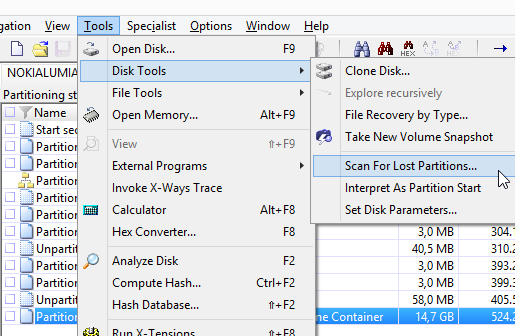
  • open the image with X-Ways Forensics v18.5. From XWF v18.5 beta2, the partition containing Windows Phone data will be shown as WinPhone Container. In the figure below, it's partition 8.

  • Go to Tools | Disk Tools | Scan for Lost Partitions. In the window "Scan For Lost Partitions", tick the first checkbox only and click OK

  • the search will find two more partitions:
  • double click on each of them: one of them will be fully parsed. In my case it was partition 10. Then add the partition to your active case.

The file system is not encrypted. That allowed me to run data carving to recover deleted files, especially pictures and videos.

What follows is a gathering of the main artifacts that I managed to manually extract and parse. Bear in mind that my assumptions could be imprecise or incorrect.

Artifacts

Contacts and Call Log
Contacts are stored in: \Application Data\Microsoft\Outlook\Stores\DeviceStore\store.vol
Call log is stored in: \Application Data\Microsoft\pim.vol

I ran strings against both of the files. I haven't found any timestamp inside the pim.vol file.

SMS messages
Text messages are stored in: \Application Data\Microsoft\Outlook\Stores\DeviceStore\store.vol

In hex view the body of each text message is preceded by the string "IPM.SMS" or "IPM.SMStext". From what I've seen, the timestamp is not nearby the message and I don't know where it could be located. It's possible to distinguish sent messages from received messages by the fact that a sent message lacks the phone number of the recipient in its structure.

Received Message

 
Sent Message

According to what I read in the XDA-Developers forum and on Forensic Focus, Windows Phone periodically creates a XML backup of text messages and stores them in a file named CommsBackup.xml (\Application Data\Microsoft\Outlook\BackupVols). The xml file contains many tags, the most important are:

TAG NAME Description
<Property Name="0x37001f"> body
<Property Name="0x3003001f"> sender/receiver's phone number
<Property Name="0xe070003"> value 21 = sent
value 01 = received
<Property Name="0xe060040"> timestamp (received/sent)

I successfully retrieved thousands of old text messages from unallocated space. In order to carve out deleted SMS XML entries, add the following data to the file File Type Signatures Search.txt located in the XWF installation folder.

Description WP SMS backup
Extensions sms
Header <Property Name="0x1a001f">IPM.SMStext
Offset 0
Footer SMS:ReplaceOption">
Default Size 100/6000

You can manually edit that file with notepad. Just copy and paste at the end of the file:
WP SMS backup sms <Property Name="0x1a001f">IPM.SMStext 0 SMS:ReplaceOption"> 100/6000

Within XWF, press F10, tick the File header signature search checkbox and press OK. In the File header search window, tick the newly created signature and choose complete byte-level search  at the right bottom.

Once finished carving, export all these files to a folder. Use my script wp78_sms_xml.py to automate the parsing of all these carved messages.

Images
Pictures are stored in: \My Documents\Zune\Content\0300\00
The file names are numeric (in hex format) and are in the order in which the pictures were saved on the phone. Even though the phone is running Window Phone 7.8, EXIF metadata shows Windows Phone 7.5. Data carving allowed me to fully recover many deleted pictures.

Bluetooth
The list of received files via bluetooth is stored in:
\Applications\Data\51F49C63-5966-4752-BB12-430455F911A8\Data\IsolatedStore\btsharing.sdf
I used the freeware utility CompactView to open this file and read the table ReceivedFiles.


Emails
Emails are stored in .dat files under:
\Application Data\Microsoft\Outlook\Stores\DeviceStore\data

Downloaded attachments are stored under:
\Application Data\Volatile\EmailAttachments\Attachments[e-mail ID]

The .dat files contain the message body of each e-mail. The header is stored in the store.vol file. A keyword search for the term SMTP in the store.vol file allows to find all the e-mail addresses related to received and sent emails.

In the following picture I show the content of an incoming email that I'd sent to myself from another device during the testing. The email is stored inside a dat file. Its partial header is located inside the store.vol file. I don't know yet how to automate the correlation of these two blocks of information.  


Internet Explorer
Browser artifacts are stored in:

Favorites: \Windows\Favorites <== URL files (both default and personal ones)
Cookies: \Windows\Profiles\guest\Cookies
History: \Windows\Profiles\guest\History\History.IE5\index.dat
Cache: \Windows\Profiles\guest\Temporary Internet Files\Content.IE5

I extracted the entire guest folder and parsed it with full success with Internet Evidence Finder v6.6.

Applications
The two paths \Applications\Data and \Applications\Install contain the same number of subfolders with the same ID names. The data folder contains app settings and user data while install is the installation folder.


In order to retrieve the name corresponding to each ID use the URL:
http://windowsphone.com/s?appid=ID (where ID is the ID you want to search)

Some apps are preinstalled and their IDs are listed here:

I wrote a small python script wp_appid.py that automatically retrieves AppNames from AppIDs.

The app version information is sometimes stored in files named __ApplicationSettings in  \Applications\Data\[App-ID]\Data\IsolatedStore. For instance this one is from the Twitter app:


Wireless Networks
\Windows\Wlan\CommonAppData\Microsoft\Wlansvc\Profiles\Interfaces\{xxxxxxxx-xxxx-xxxx-xxxx-xxxxxxxxxxxx}\{Random-GUID}.xml

Creation time will correspond to the first connection to that SSID.


Adobe PDF Reader
Last opened PDF files are listed in:
\Applications\Data\BC4F319A-9A9A-DF11-A490-00237DE2DB9E\Data\IsolatedStore\ARFileOpenParms.xml

Each entry shows as well when the PDF file was opened.

Copies of opened PDF files are stored in:
\Applications\Data\BC4F319A-9A9A-DF11-A490-00237DE2DB9E\Data\IsolatedStore

WhatsApp (v2.12.72)
The app version information is stored in the file \Applications\Data\218A0EBB-1585-4C7E-A9EC-054CF4569A79\Data\IsolatedStore\version

The phone number in use is located in:
\Applications\Data\218A0EBB-1585-4C7E-A9EC-054CF4569A79\Data\IsolatedStore\settingsv2\nv\settings.db

This file contains the filetime timestamp of when WhatsApp was activated. You can convert it from here: http://www.silisoftware.com/tools/date.php


Messages are stored in a SQLite database:
\Applications\Data\218A0EBB-1585-4C7E-A9EC-054CF4569A79\Data\IsolatedStore\messages.db

Pictures and video shared (received and sent) are stored in:
\Applications\Data\218A0EBB-1585-4C7E-A9EC-054CF4569A79\Data\IsolatedStore\Shared\Transfers\

Received pictures when viewed get automatically saved in:
\My Documents\Zune\Content\0300\00

Deleted messages: I successfully carved out SQLite databases with XWF. That meant thousands of deleted messages recovered.

Twitter (v3.0.1.25063)
The most interesting files are stored in:
\Applications\Data\0B792C7C-14DC-DF11-A844-00237DE2DB9E\Data\IsolatedStore

You can run strings against these files:
{Twitter UserID}.Timeline.dat <== contains tweets that appeared on the user's timeline
{Twitter UserID}.Connect.dat <== notifications for the tweets that got favorited or retweeted
{Twitter UserID}.Friends.dat
{Twitter UserID}.DirectMessages.dat  <== contains direct messages
{Twitter UserID}.SavedSearches.dat <== saved searches on Twitter

OneDrive
Folder:
\Applications\Data\AD543082-80EC-45BB-AA02-FFE7F4182BA8\Data\IsolatedStore\

Under this folder there are files in JSON format with a prefix name ItemViewModel containing metadata of files stored on the user's OneDrive account. These files contain useful pieces of information that inform us if a OneDrive account is in use: DiskQuotaUsage, DisplayQuotaRemaining and DateModifiedOnClient.

In case SyncUpload is active on the phone, we'll also see additional details for uploaded files such as: filename, extension, displaysize, lastaccess, modifieddate, ownername and sharinglevel.

Timestamps are in DateTime format. In the following article, Microsoft explains how DateTime works:
Time values are measured in 100-nanosecond units called ticks, and a particular date is the number of ticks since 12:00 midnight, January 1, 0001 A.D. (C.E.) in the GregorianCalendar calendar.
For instance, 635503790921870000 decodes to 2014-10-31 19:04:52.187000. Here's a post on how to convert from ticks to human readable date.


Registry artifacts

The path \Windows\Registry\ contains two registry hive files: system.hv and user.hv.
Timestamps are encoded in Win64Bit Little Endian.

An old post in the xda-developers forum explains how to convert hv files into text files by using a command line tool named rgucomp. The result is not that good, but it's better than nothing. From the command prompt type:
  • set _FLATRELEASEDIR=.
  • rgucomp -nologo -o system.hv > system.txt
I'll list below some artifacts that can be extracted from the two hives. We can use them as keywords to perform searches in the unallocated space.

Account (user.hv)
The current Microsoft account configured on the phone is located in:

[HKEY_CURRENT_USER\Software\Microsoft\ActiveSync\Partners\{Random-GUID}]
  "LastSyncSuccess"=hex:40,61,20,35,2B,D9,D0,01
  "LastSyncAttempt"=hex:40,61,20,35,2B,D9,D0,01
  "AccountCreateTime"=hex:80,2E,D4,86,FB,D7,D0,01
  "Email"="xxxxxxxxxxx@hotmail.com"
  "User"="xxxxxxxxxxx@hotmail.com"

AccountCreateTime = time when the account was first configured on the phone
LastSyncSuccess = time of last successful sync

Internet Explorer - Typed URLs (user.hv)
URLs typed by the user are located in:

[HKEY_CURRENT_USER\Software\Microsoft\Internet Explorer\PreviouslyTyped\[URL]

For example:

[HKEY_CURRENT_USER\Software\Microsoft\Internet Explorer\PreviouslyTyped\http://www.ansa.it/]
  "Title"="ANSA.it"
  "Visits"=dword:1
  "LastVisited"=hex:10,2F,A0,FF,FD,D7,D0,01 <== (decodes to August 16, 2015 08:31:50)

IMSI (system.hv)
FriendlyName (device name set by the owner of the phone)
SimImsi (current IMSI)
LastSimImsi (previous IMSI - useful in case we need to know if another SIM card was used)

Bluetooth (system.hv)
name (paired device name - the field "name" is preceded by the keyword "keytype")
LastConnectTime (last connection time to the paired mobile device)

Network address (system.hv)
DhcpIPAddress
DhcpSubnetMask
LeaseObtainedHigh (date and time of when the IP was obtained)
DhcpDefaultGateway
DhcpServer
DhcpDNS

LastShutDownDateTime (system.hv)
LastShutDownDateTime keeps track of the last shutdown time of the device.


GPS coordinates  (system.hv)
  • LastPosInjected (last GPS coordinates injected by an application - e.g. Maps)
  • LastKnownLocation (provides date/time and GPS coordinates - I noticed it got updated when I took geotagged pictures and when I chose Find my phone).
  • LocationSyncStart (time of last location sync)

Download

I wrote three Python scripts to automate the parsing of all the above artifacts. Some pieces of code are taken from the script wp8-callhistory.py written by cheeky4n6monkey.

My following scripts need Python 2.7 and have been tested on Microsoft Windows only:
  • wp78_parser.py: you can run it against specific files or the entire image. Call log and contacts are extracted from store.vol and pim.vol only.
         [UPDATE 03/27/2016]: text message timestamp has been found and decoded
  • wp_appid.py: finds AppNames from AppIDs. If you need to query multiple AppIDs at once, write them in a text file and use the file as input data. When reading from a text file, the script will automatically skip invalid lines and wrong characters. So you don't have to worry about normalizing input data.
  • wp78_sms_xml.py: after carving out SMS xml entries from the forensic image, use this script to do the parsing

You can download the scripts from my Github repository.


Final notes

The following articles have been very helpful to me to understand the structure and location of the data stored on Windows Phone devices:

Thursday, August 13, 2015

USB Write-Blocking with the registry: Beware of UASP on Windows 8/8.1 - Workaround

I read once more the description of USB Attached SCSI on Wikipedia and I noticed these two lines:

Microsoft added native support for UAS to Windows 8. Drives supporting UAS load Uaspstor.sys instead of the older Usbstor.sys. Windows 8 supports UAS by default over USB 2.0 as well.

That explains why my UASP device works in "UASP" mode even if I plug it in on a USB 2.0 port.

I then thought: what if I replace uaspstor.sys with usbstor.sys?

And you know what? It worked!


These are the steps for the workaround:

  • boot into safe mode: within Windows, hold the SHIFT key and click Restart
  • click on the Troubleshoot button
  • select  Advanced Options
  • choose Command Prompt
  • login into your admin account
  • from command prompt, type C: and press Enter
  • type cd windows\system32\drivers and press Enter
  • type ren uaspstor.sys uaspstor.sys.old and press Enter to rename the file uaspstor.sys into uaspstor.sys.old (or whatever you like)
  • type copy usbstor.sys uaspstor.sys and press Enter to have an additional copy of usbstor.sys renamed into uaspstor.sys
  • close your command prompt by clicking on the "X" in the upper right corner
  • click on the Continue button to exit and reboot into Windows 8/8.1

Set "WriteProtect" to "1" in the registry, plug in your UASP device and finally enjoy it in read-only mode!

Since I applied the workaround, I haven't had any BSOD or software issue. So far it appears to be a stable workaround.

Your feedback is appreciated, thanks.

Sunday, August 9, 2015

USB Write-Blocking with the registry: Beware of UASP on Windows 8/8.1

Introduction

On Microsoft Windows operating systems it's possible to use the Windows registry to disable write access on USB ports.

Figure 1: HKLM\SYSTEM\CurrentControlSet\Control\StorageDevicePolicies

That has been for a long time a convenient and safe way to make USB ports read only. Until UASP came out.

"USB Attached SCSI Protocol" (UASP) is designed to improve USB 3.0 transfer speeds. Microsoft Windows 8 has native support for UASP as written on the page "Windows 8: What's new for USB":
Windows 8 includes a new USB storage driver that implements the USB Attached SCSI Protocol (UASP). The new driver uses static streams for bulk endpoints, as per the official USB 3.0 specification.
Analysis

For this test I decided to use:
  • HP EliteBook 8470w Mobile Workstation
  • OS Windows 8.1 Pro x64
  • Transcend JetFlash USB 3.0 64GB Flash Drive (not UASP)
  • StarTech adapter cable USB 3.0 to 2.5" SATA  w/UASP  (mod. USB3S2SAT3CB) with HGST 1 TB internal 2,5" SATA drive
After turning ON the USB write protection with the Windows registry, I plugged in the two USB 3.0 devices directly into my laptop.

The tool USB Device Viewer shows that the flash drive has been recognized as a "USB Mass Storage device", while the other one as a "USB Attached SCSI mass storage device".

Figure 2: output of USB Device Viewer

In Windows PowerShell, I used the cmdlet GET-WMIOBJECT to list my drives:

PS > GET-WMIOBJECT win32_diskdrive

The thumb drive is shown as a "USB device", on the other hand the SATA drive (externally connected via USB) is shown as a "SCSI disk device". My notebook has USB 3.0 and USB 2.0 ports, but it doesn't make a difference where I plug in the drive. The adapter makes the SATA drive appear as a SCSI device.
Figure 3: Powershell "GET-WMIOBJECT win32_diskdrive" on Win 8.1 Pro

I then checked the read-only state of the two devices by using Diskpart.

The thumb drive (Disk 3 - \\.\PhysicalDrive3) is in read-only mode as expected.

Figure 4: the thumb drive is in read-only mode

The external SATA drive (Disk 2 - \\.\.PhysicalDrive2) is NOT in read only mode.

Figure 5: the external SATA drive is still in WRITE mode
I successfully created a new folder named "BrandNewFolder".

Figure 6: folder creation

 And I created a new txt file named "BrandNewFile.txt" inside this folder.

Figure 7: file creation

I then unplugged the drive and I plugged it in on a second computer (Intel NUC DN2820FYKH with Windows 8.1). The newly created folder was still there. Unfortunately that means I modified my "evidence" drive.

Figure 8: the folder was really written to the drive

I repeated the same test on the second computer and I had the same results.

I made a last test: I went back to my laptop and installed Windows 7 Pro (on a different internal drive). Windows 7 has no native support for UASP. I repeated all the steps written above and this time the 1 TB drive with the mentioned adapter was recognized as a simple USB device in read only mode.

Figure 9: external drive in read-only mode on Windows 7 Pro


Conclusion

The registry key doesn't work on Win8/8.1 with UASP devices. At the moment I haven't found a way to disable UASP. I googled a bit and have found out there are already around some thumb drives which use UASP.

For the time being, stay safe on Windows 7 or choose a hardware write-blocker.