Introduction
On Microsoft Windows operating systems it's possible to use the Windows registry to disable write access on USB ports.
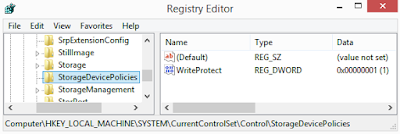 |
| Figure 1: HKLM\SYSTEM\CurrentControlSet\Control\StorageDevicePolicies |
That has been for a long time a convenient and safe way to make USB ports read only. Until UASP came out.
"USB Attached SCSI Protocol" (
UASP) is designed to improve USB 3.0 transfer speeds. Microsoft Windows 8 has native support for UASP as written on the page "
Windows 8: What's new for USB":
Windows 8 includes a new USB storage driver that implements the USB Attached SCSI Protocol (UASP). The new driver uses static streams for bulk endpoints, as per the official USB 3.0 specification.
Analysis
For this test I decided to use:
- HP EliteBook 8470w Mobile Workstation
- OS Windows 8.1 Pro x64
- Transcend JetFlash USB 3.0 64GB Flash Drive (not UASP)
- StarTech adapter cable USB 3.0 to 2.5" SATA w/UASP (mod. USB3S2SAT3CB) with HGST 1 TB internal 2,5" SATA drive
After turning ON the USB write protection with the Windows registry, I plugged in the two USB 3.0 devices directly into my laptop.
The tool
USB Device Viewer shows that the flash drive has been recognized as a "USB Mass Storage device", while the other one as a "USB Attached SCSI mass storage device".
 |
| Figure 2: output of USB Device Viewer |
In Windows PowerShell, I used the cmdlet GET-WMIOBJECT to list my drives:
PS > GET-WMIOBJECT win32_diskdrive
The thumb drive is shown as a "USB device", on the other hand the SATA drive (externally connected via USB) is shown as a "SCSI disk device". My notebook has USB 3.0 and USB 2.0 ports, but it doesn't make a difference where I plug in the drive. The adapter makes the SATA drive appear as a SCSI device.
 |
| Figure 3: Powershell "GET-WMIOBJECT win32_diskdrive" on Win 8.1 Pro |
I then checked the read-only state of the two devices by using Diskpart.
The thumb drive (Disk 3 - \\.\PhysicalDrive3) is in read-only mode as expected.
 |
| Figure 4: the thumb drive is in read-only mode |
The external SATA drive (Disk 2 - \\.\.PhysicalDrive2) is NOT in read only mode.
 |
| Figure 5: the external SATA drive is still in WRITE mode |
I successfully created a new folder named "BrandNewFolder".
 |
Figure 6: folder creation
|
And I created a new txt file named "BrandNewFile.txt" inside this folder.
 |
| Figure 7: file creation |
I then unplugged the drive and I plugged it in on a second computer (
Intel NUC DN2820FYKH with Windows 8.1). The newly created folder was still there. Unfortunately that means I modified my "evidence" drive.
 |
| Figure 8: the folder was really written to the drive |
I repeated the same test on the second computer and I had the same results.
I made a last test: I went back to my laptop and installed Windows 7 Pro (on a different internal drive).
Windows 7 has no native support for UASP. I repeated all the steps written above and this time the 1 TB drive with the mentioned adapter was recognized as a simple USB device in read only mode.
 |
| Figure 9: external drive in read-only mode on Windows 7 Pro |
Conclusion
The registry key doesn't work on Win8/8.1 with UASP devices. At the moment I haven't found a way to disable UASP. I googled a bit and have found out there are already around some thumb drives which use UASP.
For the time being, stay safe on Windows 7 or choose a hardware write-blocker.


